
It really makes you think—we often spend so much time searching for a tool that can actually help us, but after wasting hours roaming around the internet, we usually come up empty-handed. Even if we do find something useful, it comes with a heavy price tag, and not everyone can afford premium tools.
However, GCB (Get Calculator Base) has completely changed the game. I have never seen a tool like this anywhere else, nor could I find anything quite like it on Google. This tool is truly on another level; it delivers every single piece of data a user actually needs.
I have a client who isn’t a developer but handles his own SEO. We built his website for him, and he was managing the SEO himself. He was facing this exact struggle until I introduced him to this tool. Honestly, he became an instant fan! He thanked me because his entire livelihood revolves around doing SEO to generate income for people. Today, he uses this tool regularly for his business.
Your page is published. It looks good. The content is solid. But three months later, it’s sitting on page three of Google — and you have no idea why.
Here’s what’s probably happening: the page has invisible problems. A missing canonical tag. Multiple H1 tags. Images with no alt text. A meta description that Google rewrote because yours wasn’t compelling enough. These aren’t dramatic failures. They’re quiet ones — the kind that slowly drain your rankings while everything else looks fine on the surface.
An on-page SEO audit finds them. And you don’t need to spend a dollar to do it properly.
This guide walks you through the complete audit process — what to check, why each element matters, and how to do all of it using the free SEO on page checker at GetCalcBase. No login. No subscription. Just answers.
What Exactly Is an On-Page SEO Audit?
An on-page SEO audit is a structured review of the technical and content elements on a single webpage that affect how search engines understand and rank it.
It’s not a full site audit — that’s a different thing. A site audit looks at crawlability, backlinks, and architecture across an entire domain. An on-page audit focuses on one URL and answers one set of questions: Is this page sending the right signals to Google?
When done properly, it gives you a specific, actionable list of fixes. Most take minutes to implement. The ranking improvement that follows can take weeks — but it does follow.
Why On-Page SEO Still Matters — Even in 2026
There’s a popular idea floating around that on-page SEO is “old school.” That Google is so sophisticated now that technical signals like meta tags and heading structure barely matter anymore. That idea is wrong — and believing it costs people rankings every day.
On-page SEO is the foundation everything else sits on. Backlinks matter. Content quality matters. Domain authority matters. But none of those things can fully compensate for pages that send confusing, incomplete, or contradictory signals to search engines.
Here’s the reality: Google’s algorithm uses over 200 ranking signals. Canonical tags, title tags, heading structure, image alt attributes, and structured data are all in that list. They’ve been there for years, and they’re still there now. In 2026, with AI-generated content flooding the web, technically clean pages with proper structure actually stand out more — not less.
Fix the foundation. Everything else performs better on top of it.
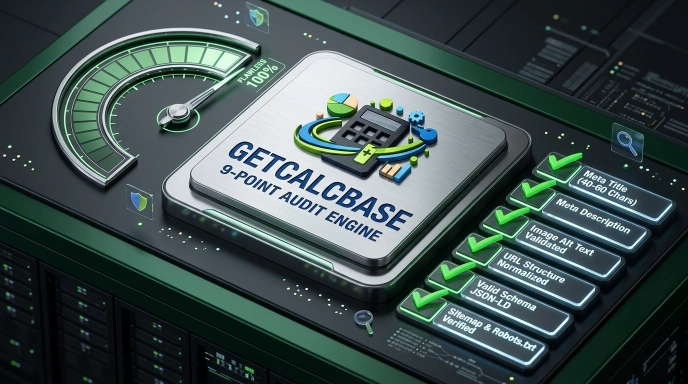
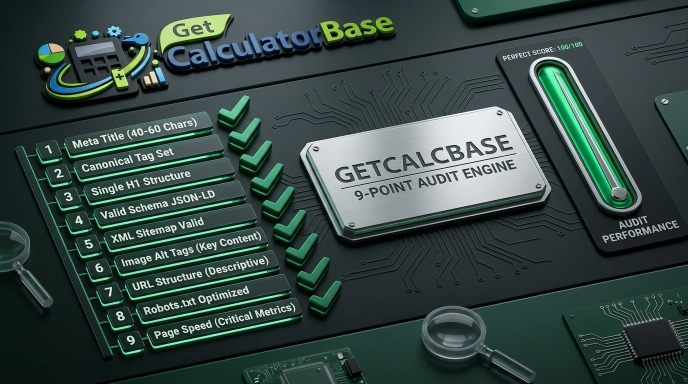
The 9-Point On-Page SEO Audit Checklist
Work through these in order. Each one builds on the last.
1. Is Your Meta Title the Right Length — and Does It Actually Make People Want to Click?
Your meta title is the blue clickable headline in Google search results. It’s one of the strongest ranking signals you have, and it’s the first thing a searcher reads when they decide whether to visit your page or keep scrolling.
Two things kill a meta title: being too long, and being too boring.
The standard to hit:
- 40 to 60 characters — long enough to be descriptive, short enough not to get cut off with “…”
- Primary keyword in the first half of the title, not buried at the end
- Something a real person would actually want to click — not a list of keywords dressed up as a sentence
What ruins most meta titles: Keyword stuffing. Titles like “Best Free SEO Tool Free SEO Checker Online Free SEO Analyzer 2026” look spammy, rank poorly, and get almost no clicks even when they do appear.
A title like “Free On-Page SEO Checker — See Every Issue in Seconds” is shorter, cleaner, and far more clickable.
How to check it: Paste your URL into the GetCalcBase SEO checker and open the Meta tab. The tool shows your exact character count with a color indicator — green means you’re in the good range, yellow means it’s borderline, red means something needs fixing.
2. Does Your Meta Description Give Searchers a Reason to Click?
The meta description doesn’t directly affect your rankings. Google made that clear years ago. But it has a massive indirect effect — because it controls your click-through rate.
A page sitting at position five with a compelling meta description often gets more clicks than the page at position three with a generic one. More clicks mean more traffic. More traffic means better engagement signals. Better engagement signals mean improved rankings over time.
The standard to hit:
- 100 to 160 characters
- Primary keyword included naturally — Google bolds it in results, making your listing stand out visually
- A clear answer to the question: “What will I get if I click this?”
- Unique to this page — not copied from another page on your site
The mistake most sites make: Leaving the meta description empty. When you don’t write one, Google pulls whatever text it thinks is most relevant — and it usually picks something functional but not compelling. You lose control of your first impression in search results.
3. Is Your Canonical Tag Set Correctly?
Most people know what canonical tags do in theory. Far fewer check them regularly — and that’s where problems sneak in.
The canonical tag tells search engines which version of a page is the authoritative one. Without it, Google sees multiple URLs showing similar content and has to guess which one to rank. Sometimes it guesses wrong. Sometimes it splits your ranking power across multiple URLs instead of consolidating it on the one you actually want to rank.
URLs that commonly conflict without canonical tags:
http://example.com/pagevshttps://example.com/pageexample.com/pagevswww.example.com/pageexample.com/page/vsexample.com/page(trailing slash)example.com/category/?color=redvsexample.com/category/
The standard to hit:
- Every page has a self-referencing canonical tag
- The canonical uses the full absolute URL, not a relative path
- It points to exactly the URL you want to rank
4. Is Any Page Accidentally Set to Noindex?
This one can quietly destroy a page’s search performance for months before anyone notices.
The robots meta tag controls whether search engines include a page in their index and whether they follow its links. An accidental noindex directive tells Google not to include the page in search results at all — effectively making it invisible to organic search.
It happens more often than you’d think. Sites get pushed live from staging environments with noindex still active. WordPress SEO plugins get misconfigured and apply noindex to entire sections of a site. Someone checks the wrong box in a page builder setting.
The standard to hit:
- Pages you want to rank should be set to
index, follow - Only set
noindexintentionally — on thank-you pages, admin pages, and content you genuinely don’t want in search results
Check this. It takes ten seconds and could reveal a problem that’s been costing you traffic for weeks.
5. Does Your Heading Structure Make Sense — to Both Readers and Search Engines?
Headings communicate the structure of your content. They work like an outline: H1 is the main topic, H2s are the major sections, H3s are sub-sections, and so on. Search engines use this hierarchy to understand what a page covers and how deeply it covers each topic.
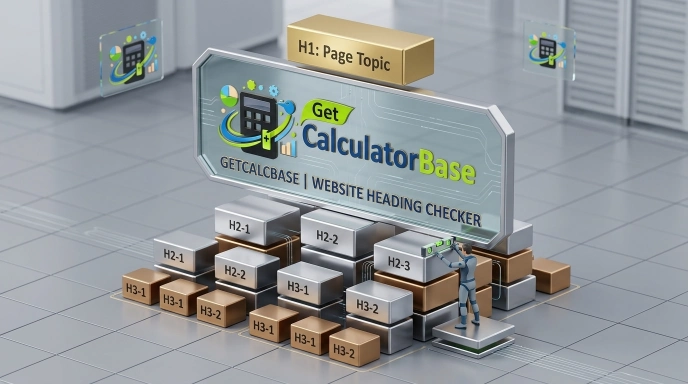
When headings are wrong, both users and search engines get confused.
The standard to hit:
- Exactly one H1 per page — not zero, not two or three
- H1 includes the primary keyword, ideally near the start
- H2s cover the major sections and naturally incorporate secondary keywords
- No skipped levels — don’t jump from H2 to H4 without an H3 in between
- Every heading accurately describes the content that follows it
The mistake that’s more common than you’d expect: Multiple H1 tags. This often happens because themes inject the page title as an H1, and then a page builder or widget adds another H1 further down the page. The result is two H1s fighting each other — and Google gets mixed signals about what the page is actually about.
Use the website heading checker at GetCalcBase to pull the full H1-through-H6 structure from any page in one click. You can see every heading, color-coded by level, and spot structural problems immediately.
6. Do Your Images Have Alt Text — All of Them?
Alt text is the written description attached to an image in HTML. Users don’t see it in normal browsing — it appears when images fail to load, and it’s read aloud by screen readers for visually impaired users.
From an SEO perspective, alt text is how Google understands what an image shows. Google’s image recognition has improved significantly, but text descriptions are still far more reliable than automated image analysis for indexing purposes.

Missing alt text means Google is guessing at your image content. For images that reinforce your page topic or include product details, that’s a missed opportunity to reinforce keyword relevance.
The standard to hit:
- Every image has an alt attribute — no exceptions
- Alt text is descriptive and specific (not “image1.jpg” or just the filename)
- At least one image’s alt text naturally includes the primary keyword
- Alt text reads naturally — it shouldn’t feel like you’re forcing keywords in
Useful fact to keep in mind: Multiple on-page audits consistently show that over 40% of images on average websites have no alt attribute at all. That’s a significant gap — and one that’s easy to close once you can see it.
7. Are Your Internal Links Actually Helping?
Internal links do two things: they help Google discover and understand the relationship between your pages, and they guide users toward content they’ll find useful. When they’re missing or poorly structured, both suffer.
The standard to hit:
- Pages have internal links to topically related content on the same site
- Anchor text is descriptive — it tells users and search engines what the linked page is about
- Important pages aren’t orphaned — every key page on your site should be reachable through at least one internal link
The anchor text problem: Too many sites use “click here,” “read more,” or “learn more” as link text. These generic phrases tell Google nothing about the linked page. Descriptive anchor text like “free on-page SEO checker” or “meta tag optimization guide” sends a much clearer signal.
8. Are Your External Links Working For You or Against You?
External links — links pointing to other websites — are an EEAT signal. They show that your content is grounded in real sources and that you’re pointing users toward trustworthy information.
But external links can also be liabilities if they’re broken, pointing to low-quality sites, or sending link authority somewhere you don’t intend.

The standard to hit:
- External links go to authoritative, relevant sources
- Paid or sponsored links are properly tagged with
rel="nofollow"orrel="sponsored" - No broken external links (pages that return 404 errors)
9. Does the Page Have Schema Markup — and Is It the Right Type?
Schema markup is structured data embedded in your page’s HTML that helps Google understand your content at a deeper level. It’s what powers rich results in search — FAQ dropdowns, star ratings, how-to steps, event details, recipe cards.
Pages with relevant schema markup often get more visual real estate in search results. More visual space means more clicks — even from the same ranking position.
The standard to hit:
- Schema type matches the content (Article for blog posts, FAQPage for FAQ sections, Product for product pages, HowTo for guides)
- JSON-LD is valid — no syntax errors
- Schema includes all recommended properties for that type
Use the schema extraction feature in the free on-page SEO checker to pull the complete JSON-LD from any page. This is especially useful for understanding what schema types your top competitors are using.
How to Run the Full Audit in Under Two Minutes
Here’s the exact process:
- Open the GetCalcBase SEO on page checker
- Paste the URL of the page you want to audit
- Click Extract Data and wait a few seconds
- Work through each tab: Meta → Headings → Content → Images → Links → Schema
- Write down every issue you find
- Fix them in your CMS or page builder
- Run the audit again to confirm the fixes took effect
That’s a complete audit. No expensive software. No learning curve. No account to create.
The Most Common On-Page SEO Mistakes (And How to Fix Each One)
Missing or duplicate meta descriptions Fix: Write a unique 100–160 character description for every page. Focus on what the user gets, include the keyword naturally, and end with a reason to click.
Multiple H1 tags Fix: Check your theme settings and any active page builders. Most WordPress themes inject the post title as H1 automatically — make sure nothing else on the page is also using an H1 tag.
Images with no alt text Fix: Go through your media library and add descriptive alt text to every image. In WordPress, this is in the image attachment details panel. For pages already published, edit each image block directly.
Accidental noindex on important pages Fix: Check the robots directive in the Meta tab of the audit tool. In WordPress, check your SEO plugin settings — Yoast and RankMath both have per-page noindex controls that are easy to toggle accidentally.
No canonical tag Fix: Most SEO plugins for WordPress (Yoast, RankMath, AIOSEO) add canonical tags automatically. If yours isn’t appearing, check whether the plugin is active and correctly configured.
Missing schema markup Fix: For WordPress, RankMath’s schema module handles most common types without coding. For custom implementations, use Google’s Rich Results Test to validate your JSON-LD before publishing.
How Often Should You Run On-Page SEO Audits?
There’s no single right answer — it depends on how frequently your site changes. But here’s a practical framework:
Every time you publish a new page: Run the audit immediately after publishing to catch any configuration issues before they have time to affect rankings.
Every time you make significant edits: Content changes can affect heading structure, internal links, and other on-page elements. Re-audit after major edits.
Every quarter for your top pages: Your highest-traffic and highest-value pages deserve regular attention. Check them every three months even if you haven’t edited them — plugin updates and theme changes can introduce new issues silently.
Any time you notice an unexplained ranking drop: A sudden drop often has an on-page cause. Run the audit before jumping to conclusions about algorithm updates or backlinks.

Quick Reference: On-Page SEO Standards at a Glance
| Element | Ideal Standard | Common Problem |
|---|---|---|
| Meta Title | 40–60 chars, primary keyword in first half | Too long, keyword stuffed, duplicate |
| Meta Description | 100–160 chars, unique, keyword included | Missing, generic, duplicate |
| Canonical Tag | Present, absolute URL, correct target page | Missing, pointing to wrong URL |
| Robots Directive | index, follow | Accidentally set to noindex |
| H1 Tag | Exactly one, primary keyword near start | Multiple H1s, keyword missing |
| Heading Levels | No skipped levels, logical hierarchy | Jumps from H2 to H4, random structure |
| Image Alt Text | Descriptive, relevant, no empty attributes | Missing on most images |
| Internal Links | Descriptive anchors, topically relevant targets | Generic anchors, orphaned pages |
| External Links | Authoritative sources, no broken links | Broken links, no sources cited |
| Schema Markup | Correct type, valid JSON-LD | Missing entirely, wrong type |
Wrapping Up
The pages that rank consistently well over time aren’t always the ones with the most backlinks or the biggest content teams behind them. They’re the ones where someone is paying close attention to the details — the elements that users never see but that search engines read on every single crawl.
An on-page SEO audit isn’t a one-time project. It’s a regular habit. And with a free tool that does the heavy lifting in under two minutes, there’s genuinely no reason not to make it one.
Start with your homepage. Then your highest-traffic page. Then your most important conversion page. Work through the checklist. Fix what’s broken. Come back next quarter and do it again.
The free SEO on page checker at GetCalcBase is always there when you need it — no login, no cost, no limits.
About the Author Written with technical input from Waseem Aijaz — WordPress Developer and SEO Expert focused on building websites that rank in competitive search environments.
More Free Tools at GetCalcBase: