
Free Aspect Ratio Calculator — Find the Right Dimensions for Any Video, Image, or Screen
Quick Answer: Enter your width and height in pixels — or pick a preset (16:9, 4:3, 1:1, 9:16, 21:9, 3:2) — to instantly see the simplified ratio, decimal value, and a live visual preview. No login, 100% browser-based.
An aspect ratio calculator takes a width and height and simplifies them into a ratio like 16:9 or 4:3 — and can also solve for a missing dimension when you already know the target ratio. Enter your pixel values or pick a preset, and this tool shows the simplified ratio, decimal form, and a live visual preview instantly.”
You’ve finished editing a video. It looks perfect on your timeline. You export it, upload it to YouTube, and the platform adds black bars on both sides. Or worse — it crops your subject’s face clean off.
Or maybe you’re designing an Instagram post. You know you want a portrait orientation, but you can’t remember whether the platform wants 4:5 or 9:16 — and whether your 1080×1350 image is actually the right size.
Pro Aspect Ratio Calculator
Real-time dynamic calculations for developers & designers.
Common Presets
Accuracy: Results are rounded for real-world usage.
100% Secure | No Data Logging | Lightweight Performance
These are not niche technical problems. They happen to content creators, photographers, video editors, designers, and developers every single day. And they all come back to one thing: not knowing the correct aspect ratio before creating or resizing content.
This free aspect ratio calculator solves that. Enter your width and height in pixels — or choose a preset ratio like 16:9, 4:3, or 9:16 — and instantly see the simplified ratio, the decimal value, and a live visual preview of the exact proportions. No login. No subscription. Real-time results.
Why I Built This Tool
While developing this calculator, I kept running into the same problem myself — exporting a video at the “right” resolution only to have YouTube crop it, or guessing whether an Instagram image was actually 4:5 or something slightly off. I built this tool to answer that question instantly, with a live preview so you can see the shape before you commit to it.
Pro Tips:
You can type in custom width and height values to check any ratio — not just the six presets. The decimal value shown is exactly what you’d use in a CSS `aspect-ratio` property.
What Is an Aspect Ratio and Why Does It Matter?
An aspect ratio is the proportional relationship between the width and height of a rectangle — expressed as two numbers separated by a colon. The first number is always the width. The second is always the height.
A 16:9 ratio means: for every 16 units of width, there are 9 units of height. A 1:1 ratio means width and height are equal. A 9:16 ratio is the vertical version of 16:9 — taller than it is wide.
The key thing to understand about aspect ratio: it describes shape, not size. A 1920×1080 image and a 3840×2160 image have completely different pixel dimensions but the exact same 16:9 aspect ratio. A 720×480 image and a 1280×853 image both have a 3:2 ratio. The ratio tells you the shape. The pixel numbers tell you the resolution.
This distinction matters constantly in real work:
For video editors: Your footage might be 4K (3840×2160), but your delivery spec calls for 1080p. If you just resize the height, you need to know what width to set to maintain 16:9 without distorting the image.
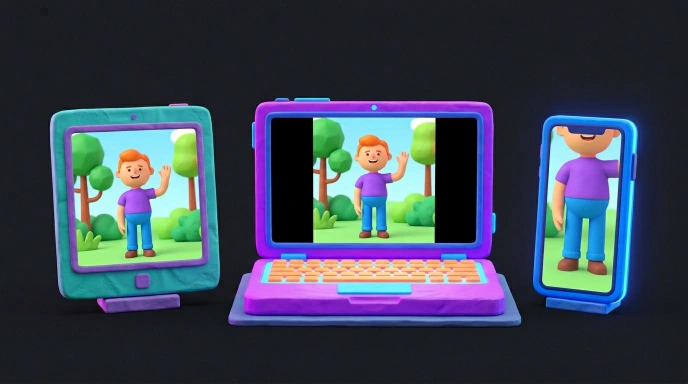
For photographers: Your DSLR shoots in 3:2 (the standard for full-frame and APS-C sensors). But an 8×10 print is a 4:5 ratio. If you don’t calculate the crop before sending to the lab, their automated system crops it for you — usually in the worst possible place.
For social media managers: Instagram, TikTok, YouTube, Facebook, and LinkedIn all have different preferred aspect ratios for different content types. Getting it wrong means your content is either cropped, letterboxed, or displayed at reduced quality.
For web designers: Responsive design requires maintaining aspect ratios across different screen sizes. The CSS aspect-ratio property uses the decimal value — which this calculator shows instantly.

A live visual preview updates in real time, showing the actual rectangular proportions of your entered ratio — so you can see immediately whether the shape feels right for your project.
How Does the Aspect Ratio Calculator Work?
The tool uses the Greatest Common Divisor (GCD) method to simplify your pixel dimensions into the cleanest possible ratio.
Here’s the math behind it:
For a 1920×1080 image: GCD(1920, 1080) = 120 1920 ÷ 120 = 16 1080 ÷ 120 = 9 Result: 16:9
For a 2560×1440 image: GCD(2560, 1440) = 320 2560 ÷ 320 = 8 1440 ÷ 320 = 4.5 → simplified as 16:9 (same ratio)
For a 1080×1350 image: GCD(1080, 1350) = 270 1080 ÷ 270 = 4 1350 ÷ 270 = 5 Result: 4:5 — the standard Instagram portrait feed ratio
The calculator also shows the decimal form — dividing width by height and expressing it as a single number relative to 1. For 16:9, the decimal is 1.78. For 4:3, it’s 1.33. This decimal form is used in CSS aspect-ratio properties and in cinema format specifications like 2.39:1 (anamorphic widescreen).
How to Use the Aspect Ratio Calculator — Step by Step
Step 1 — Enter Your Width and Height Type your pixel dimensions into the Width and Height fields. These can be the dimensions of an existing image you want to identify, or the target dimensions for a new project. The ratio calculates instantly as you type.
Step 2 — Or Use a Quick Preset Click any preset button — 16:9 (Video), 4:3 (Photo), 1:1 (Square), 9:16 (Story), 21:9 (Ultrawide), or 3:2 (DSLR) — to instantly load that ratio and see its standard dimensions.
Step 3 — Read Your Results The Aspect Ratio field shows your simplified W:H ratio. The Decimal field shows the ratio as a single number (useful for CSS and cinema specs). The live preview rectangle updates to show you exactly what that shape looks like.
Step 4 — Use the Values in Your Project Copy the ratio for documentation or client communication. Use the decimal for CSS properties. Use the preset dimensions for your design or video software.


Got your ratio? If you’re using it in CSS, you can try the code in our live editor before adding it to your site.
What Does This Tool Calculate?
The GetCalcBase aspect ratio calculator delivers three outputs for any input:
Simplified Ratio (W:H format) The cleanest whole-number representation of your aspect ratio — 16:9, 4:3, 3:2, and so on. This is what you’ll use when communicating specs to clients, editors, or platforms.
Decimal Ratio (N:1 format) Width divided by height, expressed as a decimal relative to 1. For 16:9, this is 1.78. For 4:3, it’s 1.33. For cinema anamorphic, it’s 2.39. This format is used in CSS aspect-ratio properties and in professional cinema delivery specs.
Live Visual Preview A real-time rectangle that updates its proportions as you type — showing you exactly what shape your ratio produces before you commit it to a design or export.
Common Aspect Ratios and When to Use Each One
Understanding which ratio applies to which use case is where the real value is. Here’s a complete reference:
16:9 — The Universal Standard
Decimal: 1.78:1 What it’s for: YouTube videos, Vimeo, modern television, computer monitors, live streaming, online presentations, video calls.
This is the most common aspect ratio in digital media today. If you’re creating video content for any screen-based platform that isn’t specifically mobile-first, 16:9 is almost always the right starting point.
Common 16:9 resolutions:
| Resolution Name | Pixels |
|---|---|
| HD (720p) | 1280 × 720 |
| Full HD (1080p) | 1920 × 1080 |
| QHD / 2K | 2560 × 1440 |
| 4K UHD | 3840 × 2160 |
| 8K UHD | 7680 × 4320 |
9:16 — Vertical Video for Mobile
Decimal: 0.5625:1 What it’s for: Instagram Stories and Reels, TikTok videos, YouTube Shorts, Snapchat, Facebook Stories.
The vertical phone screen flipped the dominant video orientation. 9:16 is literally 16:9 rotated 90 degrees. If you’re shooting content that people will watch on a phone with their hand in the normal holding position, 9:16 is your ratio.
Standard resolution: 1080 × 1920 pixels
4:3 — Traditional Photography and Presentations
Decimal: 1.33:1 What it’s for: Micro Four Thirds cameras, medium format cameras, most iPad and tablet screens, PowerPoint presentations, older television content.
4:3 was the universal standard for television and computer screens before 16:9 became dominant in the mid-2000s. It’s still the native ratio for many camera systems and remains common in presentations and print-oriented formats.
3:2 — Standard DSLR and Mirrorless
Decimal: 1.5:1 What it’s for: Full-frame and APS-C digital cameras, 35mm film photography, common print sizes (4×6, 8×12, 12×18).
If you shoot with a Canon, Nikon, Sony, or Fujifilm APS-C or full-frame camera, your images come out of the camera in 3:2. This ratio prints exactly to 4×6 and 8×12 without any cropping — which is why it’s the default for photographic prints at those sizes.
The print problem: When you order an 8×10 print from a 3:2 file, you’re asking a 1.5:1 ratio image to fit a 1.25:1 print. Something gets cropped. Calculate the crop yourself first.
1:1 — Square Format
Decimal: 1.0 What it’s for: Instagram grid posts, Facebook profile pictures, logo design, avatar images, certain print formats.
Equal width and height. Simple. Square posts on Instagram still get strong engagement despite the platform supporting other ratios.
4:5 — Instagram Portrait Feed
Decimal: 1.25:1 (inverted: 0.8:1) What it’s for: Instagram feed posts in portrait orientation.
4:5 is Instagram’s maximum allowed portrait ratio for feed posts. At 1080×1350 pixels, it gives your image the most vertical real estate possible in the feed — taking up more screen space than a square (1:1) or landscape post, which generally improves engagement for vertical subjects.
21:9 — Ultrawide
Decimal: 2.33:1 What it’s for: Ultrawide gaming monitors, cinematic presentations, immersive video content.
21:9 ultrawide monitors are actually closer to a 64:27 ratio (2.37:1) in practice, but are marketed as 21:9 for familiarity. Common ultrawide resolutions are 2560×1080 and 3440×1440.
2.39:1 (Anamorphic) — Cinema Scope
Decimal: 2.39:1 What it’s for: Theatrical film releases, cinematic video projects, DCI (Digital Cinema Initiatives) scope format.
This is the ratio of virtually every blockbuster film that gets released in theaters. When you watch a movie on a 16:9 TV and see black bars at the top and bottom — that’s because the film is 2.39:1 and your TV is 1.78:1.
The Formula — How to Calculate Aspect Ratio Manually
If you ever need to do this without the calculator, here are the two methods:
Method 1 — Simplified W:H Format (Using GCD)
- Find the Greatest Common Divisor of your width and height
- Divide both numbers by the GCD
- The result is your simplified ratio
Example: 1920 × 1080 GCD(1920, 1080) = 120 1920 ÷ 120 = 16 1080 ÷ 120 = 9 Ratio: 16:9
Example: 4000 × 3000 GCD(4000, 3000) = 1000 4000 ÷ 1000 = 4 3000 ÷ 1000 = 3 Ratio: 4:3
Method 2 — Decimal N:1 Format
- Simply divide width by height
- Express the result relative to 1

Example: 1920 × 1080 1920 ÷ 1080 = 1.7778 Ratio: 1.78:1 (rounded to two decimal places)
Example: 2048 × 858 (DCI Scope) 2048 ÷ 858 = 2.386 Ratio: 2.39:1
The calculator handles both methods simultaneously — showing you the simplified W:H version and the decimal N:1 version at the same time for every input.

Resizing Without Distortion — The Core Use Case
The most common practical application of an aspect ratio calculator is resizing an image or video to new dimensions without distorting the content.
The formula for maintaining aspect ratio when resizing:
New Height = (Original Height ÷ Original Width) × New Width
Example: You have a 1920×1080 video. You need to resize it to 1280 pixels wide for a web player.
New Height = (1080 ÷ 1920) × 1280 = 0.5625 × 1280 = 720 pixels
Your new dimensions: 1280 × 720 — exactly 720p, same 16:9 ratio, no distortion.
This is the math that prevents stretched images. If you resize only one dimension without calculating the other, you get distortion. If you calculate the correct pair using this formula — or let the calculator do it — you maintain perfect proportions.
Aspect Ratio Calculator for Specific Platforms — The Numbers You Actually Need
YouTube
| Content Type | Ratio | Pixels |
|---|---|---|
| Standard video | 16:9 | 1920 × 1080 |
| 4K video | 16:9 | 3840 × 2160 |
| Shorts | 9:16 | 1080 × 1920 |
| Thumbnail | 16:9 | 1280 × 720 |
| Content Type | Ratio | Pixels |
|---|---|---|
| Square post | 1:1 | 1080 × 1080 |
| Portrait post | 4:5 | 1080 × 1350 |
| Landscape post | 1.91:1 | 1080 × 566 |
| Story / Reel | 9:16 | 1080 × 1920 |
TikTok
| Content Type | Ratio | Pixels |
|---|---|---|
| Standard video | 9:16 | 1080 × 1920 |
| Content Type | Ratio | Pixels |
|---|---|---|
| Feed image | 1.91:1 | 1200 × 628 |
| Story | 9:16 | 1080 × 1920 |
| Cover photo | 2.7:1 | 820 × 312 |
DSLR Photography — Common Output Ratios
| Output | Ratio | Typical Pixels |
|---|---|---|
| Native sensor (APS-C / Full Frame) | 3:2 | 6000 × 4000 |
| Native sensor (MFT / Medium Format) | 4:3 | 5472 × 4104 |
| Instagram portrait | 4:5 | 1080 × 1350 |
| 8×10 print | 4:5 | 2400 × 3000 |
| 4×6 print | 3:2 | 1800 × 1200 |
| 8×12 print | 3:2 | 2400 × 3600 |
| YouTube thumbnail | 16:9 | 1280 × 720 |
Pre-Export Checklist — Before You Upload Anywhere
Run through this before exporting or uploading any image or video:
- Enter your current pixel dimensions into the calculator
- Confirm the simplified ratio matches your intended platform requirement
- Check the platform's preferred dimensions table above
- Verify your aspect ratio is correct before export (not after)
- If resizing, calculate the paired dimension using the formula to avoid distortion
- For print orders, calculate your crop manually before sending to the lab

- For social media, check whether the platform prefers portrait, square, or landscape
- For video delivery, confirm whether the spec requires 16:9, 2.39:1, or something else
- For DSLR photos, know your camera's native ratio before choosing a print size
- Save your calculated dimensions for use in Photoshop, Premiere, or your design tool
What Technology Powers This Tool?
The GetCalcBase Aspect Ratio Calculator runs entirely in your browser using JavaScript — no data is sent to any server, no login is required, and no images are uploaded or stored.
The GCD algorithm (Euclidean algorithm) calculates the greatest common divisor of your width and height values recursively — reducing any pair of dimensions to their simplest whole-number ratio in milliseconds.
The live preview uses CSS aspect-ratio property to render an accurately proportioned rectangle that updates in real time as you type, giving you an immediate visual sense of the shape before you commit it to your design.
The preset buttons load predefined width × height values for the six most commonly used ratios in digital media and photography — 16:9, 4:3, 1:1, 9:16, 21:9, and 3:2.
Everything runs locally. Your content stays private. The calculation is instantaneous.
Key Benefits — Why Use a Calculator Instead of Guessing?
Prevents platform-specific upload errors Every platform has different dimension requirements. Using the wrong ratio means your content gets auto-cropped, letterboxed, or displayed at reduced quality. Calculating first prevents that.
Protects photography compositions When you calculate your crop before sending images to a print lab, you control where the crop happens. When you don’t, the lab’s automated system decides — and automated systems don’t know what matters in your frame.
Speeds up video production Knowing your delivery specs before you start editing means your project settings are correct from the beginning. Changing aspect ratio mid-project or after export is avoidable.
Eliminates distortion when resizing Any resize that doesn’t maintain the original aspect ratio introduces distortion. The calculator tells you the paired dimension instantly — so every resize is clean.
Provides professional outputs for client communication When a client asks “what aspect ratio should I use?” or “can you give me the specs for that size?”, the calculator gives you precise answers in seconds — in both the W:H format they understand and the N:1 decimal format for technical documentation.
Comparison: GetCalcBase vs. Competitor Aspect Ratio Tools
| Feature | GetCalcBase | Most Free Calculators |
|---|---|---|
| Simplified W:H ratio output | ✅ Yes | ✅ Yes |
| Decimal N:1 ratio output | ✅ Yes | ⚠️ Some |
| Live visual preview | ✅ Real-time | ⚠️ Rarely |
| Quick presets (6 ratios) | ✅ Yes | ⚠️ Some |
| Works without uploading images | ✅ Yes | ✅ Usually |
| No login required | ✅ Always | ✅ Usually |
| Privacy (no data sent to server) | ✅ 100% local | ❌ Often tracked |
| Platform-specific dimension guide | ✅ In content | ❌ Rarely |
Frequently Asked Questions (FAQs)
What is the difference between 16:9 and 16:10?
16:9 is the standard for most modern screens, monitors, and video content. 16:10 is slightly taller and more common on some laptop displays and older monitors — the two are close but not identical, so always confirm which one your target device or platform actually uses.
What is my aspect ratio for 2560×1440?
The aspect ratio for 2560×1440 is 16:9 — the same ratio as 1920×1080 and 3840×2160. All three are 16:9 at different resolutions. The decimal form is 1.78:1.
How do I calculate aspect ratio from width and height?
Divide both values by their Greatest Common Divisor (GCD). For 1920×1080, the GCD is 120, giving you 16:9. The calculator does this automatically — enter your dimensions and the ratio appears instantly.
What aspect ratio is best for Instagram?
For feed posts: 4:5 (1080×1350) gives maximum vertical space. For square posts: 1:1 (1080×1080). For Stories and Reels: 9:16 (1080×1920). For landscape: 1.91:1 (1080×566). The best ratio depends on the content type and orientation.
What is the aspect ratio for a DSLR camera?
Most full-frame and APS-C DSLRs (Canon, Nikon, Sony) shoot in 3:2 natively. Micro Four Thirds cameras (Olympus, Panasonic) shoot in 4:3. Medium format cameras typically shoot in 4:3 as well. Your camera’s native ratio determines which print sizes match without cropping.
How do I find my aspect ratio in decimal format?
Divide your width by your height. 1920 ÷ 1080 = 1.778, expressed as 1.78:1. This decimal format is used in CSS (aspect-ratio: 16/9), cinema specs (2.39:1), and technical documentation.
What aspect ratio should I use for YouTube videos?
16:9 at a minimum of 1920×1080 for standard videos. For Shorts, use 9:16 at 1080×1920. For thumbnails, use 16:9 at 1280×720 minimum. YouTube supports 16:9 natively — other ratios will be pillarboxed or letterboxed depending on the viewer’s screen.
Conclusion — Know Your Ratio Before You Create
The aspect ratio problem almost always shows up at the worst possible moment — when you’re trying to upload something and it’s already finished. The fix usually means going back to your original file, recropping, re-exporting, and hoping the second version looks right on the platform.
The better approach is knowing your ratio before you start. Before you set up your video project. Before you crop the photo. Before you design the social media graphic. Thirty seconds with a calculator prevents hours of fixing exports.
The free aspect ratio calculator at GetCalcBase gives you simplified ratios, decimal values, and a live visual preview for any pixel dimensions you enter. Six preset buttons cover the most common use cases instantly. And because it runs entirely in your browser, it works anywhere — no login, no signup, no data sent anywhere.
Enter your dimensions. See your ratio. Build with confidence.
Want to try a change before you publish it? Paste it into our Live Code Editor and see the result instantly, or browse all our developer tools.
Disclaimer
The aspect ratio calculator provided on this page is for informational and planning purposes only. Platform dimension requirements for social media, video hosting, and print services may change over time. Always verify current specifications directly with the relevant platform before final production. GetCalcBase makes no guarantees regarding the accuracy of third-party platform requirements referenced in this content.
Content prepared for GetCalcBase.com Tool: Pro Aspect Ratio Calculator Formulas based on standard GCD method used across professional media workflows. Website Developer Waseem aijaz Linkedin.
What the Get Calculator Base Community Says
Average Rating: 4.9/5 based on our beta users