
Time Difference Calculator: Online Tool + Excel Formula Guide
To accurately find the gap between two moments, you need to convert both dates and times into a single standard format (like total milliseconds), subtract the starting time from the ending time, and then divide the result back into days, hours, and minutes. Our GetCalcBase time tool does this instantly in your browser without any manual math.
Time Duration Calculator
Days Between Dates Calculator
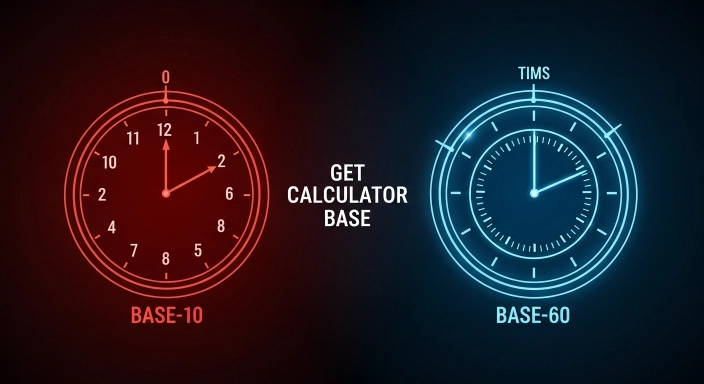
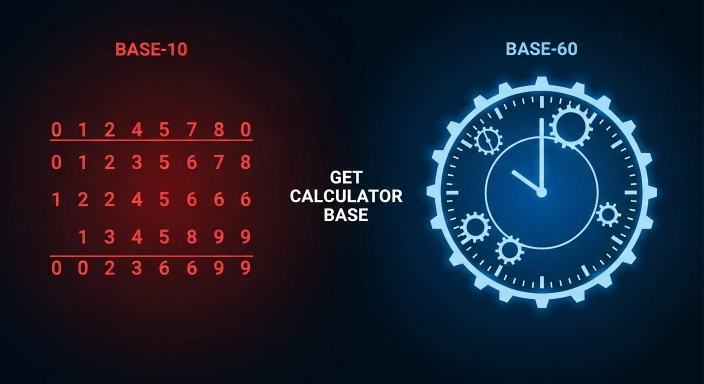
If you have ever tried to track project hours or calculate a shift that crosses midnight, you know how frustrating time arithmetic can get. Normal math uses a base-10 system, but time relies on a base-60 system. This means standard subtraction often leads to completely wrong answers.
As a developer, I noticed that most online calculators either look outdated, require page reloads, or get confused by leap years. That is exactly why I built the Time Bridge tool. It calculates the exact hours between two times, days, and minutes right on your device. Let’s look at how it works and how you can use it to make your daily scheduling effortless.
Time Duration Calculator – My Experience
This is something that most people do not notice, but there are some people who really need it. For example, checking the time difference, calculating time duration, or knowing how many hours, minutes, and seconds are between two times can be very important.
I had this need myself when I had to give a client a specific amount of time. I could give them the date, but I wanted to know the exact time duration. For example, if I wanted to check how many days, hours, minutes, and seconds were between two dates, this tool could show me the result quickly.
If you have a similar need, you can use this tool. I have also added reviews from users, including a local client review, so you can check what they said about the tool.
Expert Tip on Mathematical Accuracy:
Waseem Aijaz, who audits the mathematical logic for our academic tools, always emphasizes one rule: *Never trust mental math for time.* Because humans think in base-10, we naturally make mistakes when borrowing minutes. Always rely on a base-60 programmed tool to avoid payroll shortages.
My Personal Story:
One day, I was sitting and thinking about finding a simple way to check time differences. For example, I wanted to compare the current time with another time and quickly calculate the difference in hours, minutes, and seconds.
I searched on Google, and on the first page I found a website called GCB (Get Calculator Base). At first, I thought this was a very small thing and wondered why someone would even create a tool like this. But after visiting the website, I was surprised because they had many useful tools, including a professional-level tool called Calculating Difference in Time.
The most surprising thing for me was that all these tools were free. I really appreciated that they were helping users without charging anything.
This tool works in a very simple way. The user only needs to enter the start time and end time, and the tool immediately shows the difference in hours, minutes, seconds, and even days.
If someone calculates this manually, it can waste a lot of time, but this tool gives results instantly without any confusion.
I personally found it very useful and learned a lot from it. This is my personal experience, and I think others should also try it if they need a simple way to calculate time differences quickly.
Real-World Use Cases (Who is this for?)
Freelancers & Contractors: To log exact billable minutes for monthly client invoices.
HR Professionals: To subtract unpaid lunch breaks from overnight shift schedules.
Students & Researchers: To track how much time they actually spend studying versus taking breaks.
Travelers: To calculate exact flight layovers when crossing different international time zones.
How to Calculate Time Difference: The Simple Step-by-Step Guide
Using our time duration tracker is designed to be as simple as picking a date on a calendar. You don’t need an account, and everything runs directly on your device for total privacy.
Set the Starting Point: Click the first box and use the calendar popup to select your start date and exact time (hours and minutes).
Set the Ending Point: Click the second box to pick your final date and time.
Click “Calculate Difference”: The tool instantly runs the math and slides up a clean dashboard showing the total days, hours, minutes, and seconds.
Pro Tip: Because the tool uses absolute values, it doesn’t matter if you accidentally put the older date in the second box. The tool will automatically fix the order and give you the correct elapsed time.
How the Calculation Logic Works (The Formula)
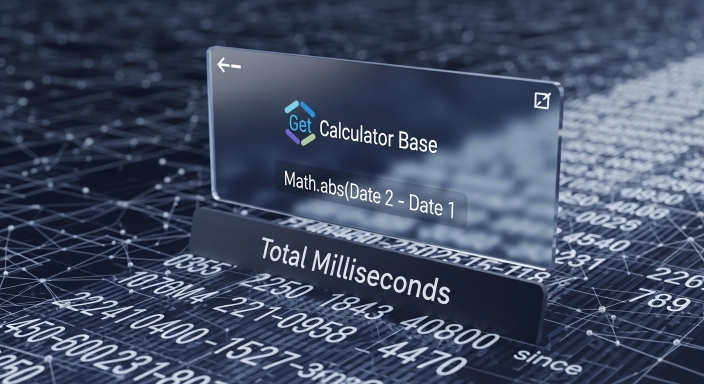
Behind the scenes, our tool uses a highly accurate JavaScript formula. First, it takes your two inputs and converts them into total milliseconds since January 1, 1970 (the Unix Epoch).
The formula looks like this: Math.abs(Date 2 - Date 1)
Once we have the total milliseconds, we divide them down:
Seconds: Milliseconds / 1000
Minutes: Seconds / 60
Hours: Minutes / 60
Days: Hours / 24
For the final human-readable summary, we use 365.25 days per year. That .25 is crucial because it perfectly accounts for leap year logic, giving you a scientifically accurate result.
Dealing with the "Midnight Problem" in Time Calculation
The biggest headache in calculating duration between times is the overnight shift. If you start a task at 11:00 PM and finish at 2:00 AM, a simple subtraction calculator will crash or give you a negative number.
Our tool bypasses this completely. By linking the time directly to a specific calendar date using the ISO 8601 format, it recognizes that 2:00 AM belongs to the next day. This solves overnight durations and crossing the 24-hour boundary flawlessly.
Standard Time vs. Decimal Hours (For Payroll) When you track time for a paycheck, 8 hours and 30 minutes does not equal 8.30 hours. Because time is based on 60 minutes, 30 minutes is actually half an hour, or 0.5. To find your decimal hours for billing, you divide your total minutes by 60. Our tool does the heavy lifting, ensuring your final count is exact so you do not undercharge your clients.
Why Manual Time Subtraction is Tricky (And How We Solve It)
In my experience, manual time subtraction is the number one cause of billing errors for freelancers. Sir Isaac Newton viewed time as a constant, absolute flow. But human perception of time is messy, and our math reflects that.
The 24-Hour Conversion Method (Military Time)
To subtract time on paper, you must first convert AM/PM into military time. 1:00 PM becomes 13:00. Only then can you attempt to stack the numbers and subtract.
Borrowing Minutes: The 60-Base Sexagesimal Logic
If you are subtracting 09:45 from 11:15, you cannot simply subtract 45 from 15. You have to “borrow” an hour. But unlike normal math where you borrow a 10, in time arithmetic, you borrow a 60. This sexagesimal system causes endless confusion, which our tool eliminates entirely.
Excel Time Difference Formula
Need to calculate time differences directly in Excel? Simple subtraction (=B2-A2) works for same-day times, but breaks the moment your times cross midnight or you need payroll-ready decimal hours. For every formula you need — including overnight shifts, unpaid break deductions, and converting minutes to decimal hours — see our complete Excel Time Difference & Payroll Guide.
Advanced Excel Time Calculations
If you need to extract specific units or handle complex logs like tracking your study routines for an education tool or counting your sleep durations for health calculators, you can use these custom variations:
| What You Want to Calculate | Copy-Paste Formula | Cell Format Needed |
| Total Minutes Only | =(B2-A2)*1440 | General or Number |
| Total Seconds Only | =(B2-A2)*86400 | General or Number |
| Decimal Hours for Payroll | =(B2-A2)*24 | General or Number |
| Overnight / Crossing Midnight | =MOD(B2-A2,1) | [h]:mm |
| Total Hours Over 24 (multi-day) | =(B2-A2)*24 | [h]:mm (custom format) |
Tool vs. Manual vs. Excel (Comparison Table)
| Feature | GetCalcBase Time Tool | Manual Calculation | Microsoft Excel |
| Speed | Instant | Slow (Requires paper/thought) | Medium (Needs formulas) |
| Accuracy | 100% (Handles leap years) | High risk of human error | Good, but breaks on negatives |
| Midnight Crossing | Automatic | Requires adding 24 hours | Requires MOD function |
| Privacy | 100% Client-Side JS | 100% Private | Requires saving files locally |
| Ease of Use | Very Easy (Click and calculate) | Hard (Sexagesimal math) | Medium (Formatting required) |
Common Excel Time Errors (And the Quick Fix)
The most frequent mistake is getting a “#####” error or a negative result — this almost always means your subtraction crossed midnight without the right formula adjustment, or your cell isn’t formatted as time/number correctly. Our Excel Time Difference & Payroll Guide walks through every one of these fixes step by step, including the “MOD” function for overnight shifts.
Professional Use Cases: From Billable Hours to Project Deadlines
A reliable date and time difference tracker isn’t just a novelty; it is a business requirement. Here is where I see this tool being used the most:
- SLA Compliance: IT teams use it to measure the exact minutes between a support ticket opening and closing.
- Payroll & HR: HR managers calculate shift durations, subtracting break times to find true working hours.
- Event Planning: Finding out exactly how many days and hours remain until a major launch.
Calculating Time Difference Between Countries & Time Zones
If you work with remote teams, you deal with UTC Offsets daily. A meeting at 9:00 AM in New York is very different from 9:00 AM in London.
Handling Daylight Saving Time (DST) Transitions
When calculating time across borders, Daylight Saving Time can suddenly add or subtract an hour from your schedule. Because our tool relies on your device’s native clock and calendar, it naturally respects these temporal shifts if you input the exact local dates.
The Evolution of Timekeeping: From Aristotle to Atomic Clocks
To truly appreciate modern timekeeping, we have to look back. The ancient Sumerians gave us the 60-base system we still use today.
Absolute vs. Relative Time: Newton and Einstein’s View
Newton argued that time ticks away constantly, entirely independent of the universe. Einstein completely shattered this with his theory of relativity, proving that time is tied to speed and gravity (the geodesic of spacetime). Today, our modern devices sync with atomic clocks, measuring the exact radiation cycles of cesium atoms to give us the precision that powers tools like ours.
Key Features of the Time Bridge Tool
- 100% Client-Side Privacy: All math happens on your own browser. We do not use servers to process your data, meaning your work schedules remain completely hidden.
- Leap Year Ready: The underlying code uses a 365.25-day cycle to ensure long-term calculations never miss a day.
- Instant Dashboard: No page reloads. As soon as you click the button, a clean grid slides up to show your data.
- Smart Order Correction: If you accidentally put the older date in the second box, the tool automatically figures out the absolute difference without breaking.
Exact Results / Outputs Provided
- Total Days: The exact number of full 24-hour cycles.
- Total Hours: The complete hour count between the two dates
- Total Minutes: The duration converted entirely into minutes.
- Total Seconds: Pinpoint accuracy for short-burst timing.
- Human-Readable Summary: A final sentence showing the exact years and remaining days for easy reading.
Frequently Asked Questions (User Intent Based)
How do I calculate the time difference between two dates?
Use our time calculator to input both the starting date/time and the ending date/time. The tool instantly outputs the difference in total days, hours, and minutes.
Why does my Excel time difference show a negative number or #####?
This usually happens when the end time is earlier than the start time (like 11 PM to 2 AM) or when the cell isn’t formatted as time. Use =MOD(B2-A2,1) instead of a plain subtraction to handle overnight differences correctly.
How do I calculate time duration with an unpaid break deducted?
First calculate the full duration using the tool above, then subtract your break length separately. For example, if you worked 9:00 AM to 5:00 PM (8 hours) with a 30-minute unpaid lunch, your paid time is 7.5 hours.
What is the easiest way to calculate elapsed time for work?
The easiest method is using an automated browser tool that handles sexagesimal math for you, ensuring no mistakes are made when borrowing minutes.
How many minutes are between two specific times?
Input your times into the tool, and look at the “Minutes” tile. It converts the entire duration strictly into a total minute count for easy tracking.
Does this tool account for seconds and milliseconds?
This tool calculates down to the second once you enable seconds in the date/time picker (tap the time field and select the seconds portion). It doesn’t support millisecond-level precision — for that level of detail, a dedicated stopwatch tool is a better fit.
Why is my manual time calculation often wrong?
Manual errors usually happen because we try to subtract time like normal base-10 numbers, forgetting that hours and minutes reset at 60.
How to calculate time difference between two longitudes?
For every 15 degrees of longitude you move east or west, the time shifts by exactly one hour.
How do I show a time difference in Excel that's over 24 hours?
Format the result cell as [h]:mm instead of the default h:mm:ss. The square brackets tell Excel to show the total elapsed hours instead of resetting at 24.
How many hours are in a week, month, and year?
There are 168 hours in a week, 720 hours in a 30-day month, and 744 hours in a 31-day month. A standard year has 8,760 hours (8,784 in a leap year). February alone has 672 hours normally, or 696 in a leap year.
Checklist: Best Practices for Error-Free Time Tracking
- Verify AM/PM: The most common mistake. Always double-check your drop-downs.
- Use Exact Dates: Never guess the duration of a multi-day event. Input the start and end dates directly into the calculator.
- Account for Breaks: If you worked an 8-hour shift with a 30-minute unpaid lunch, remember to deduct that half-hour from your final total.
- Check the Time Zone: If reporting to an overseas client, clarify if your tracked hours are in your local time or Coordinated Universal Time (UTC).
Final Thoughts: Precision Matters at GetCalcBase
Whether you are calculating time difference calculator ms for a coding project or just trying to log your weekly hours, guessing isn’t good enough. The Time Bridge removes the friction from time arithmetic, giving you a clean, beautiful, and instant result.
Disclaimer & Trust Signal: Your privacy is our top priority. The GetCalcBase time calculator is built entirely on client-side JavaScript. This means your dates, times, and personal schedules are processed directly inside your own web browser. No data is ever sent to our servers, stored, or tracked. It is 100% secure, private, and safe to use for sensitive professional work. Website Developer Waseem Aijaz Linkedin
Education Calculator Related Tools
Once you’ve got your time difference, a few other tools here come in handy. Converting that duration into a readable fraction or decimal? Fraction to Decimal Pro handles it instantly. Working with very large or very small time-based numbers (like total seconds in a year)? The Scientific Notation Converter keeps them readable.
What the Get Calculator Base Community Says
Average Rating: 4.9/5 based on our beta users