

“Are you wondering what an Aspect Ratio Calculator is, how to use it, why it is so important, and how it can help you? If so, you have come to the right place.
While our tool has been live on the website for some time and we have previously published a brief article about it, we have received many requests from our users asking for a more detailed, in-depth guide. We are creating this comprehensive post to provide you with all the information you need to fully understand and utilize the tool.
Let’s get started.”
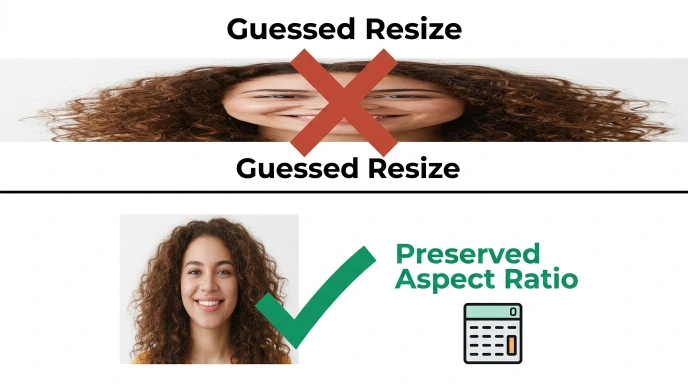
Resize an image the wrong way, and you’ll know it immediately — faces stretch, logos warp, and the whole thing just looks off. That distortion almost always comes down to one thing: the aspect ratio wasn’t preserved. An aspect ratio calculator solves this by doing the math for you, instantly.

This guide walks you through what aspect ratio actually means, how to calculate it manually, and how to use pixel dimensions to find the exact ratio you’re working with — whether that’s for a photo, a screen, a print design, or a presentation slide.
Quick Answer: What Does an Aspect Ratio Calculator Do?
An aspect ratio calculator takes a width and height (in pixels, inches, or any unit) and simplifies them into a ratio format like 16:9 or 4:3. You can also flip the process: enter a target ratio and one dimension, and it calculates the matching second dimension. This keeps your image, video, or design perfectly proportional when resizing.
What Is Aspect Ratio, in Plain Terms?
Aspect ratio is simply the relationship between an object’s width and its height, expressed as two numbers separated by a colon. A 16:9 ratio means that for every 16 units of width, there are 9 units of height — regardless of whether you’re measuring in pixels, centimeters, or inches.
This is why a 1920×1080 image and a 1280×720 image look identical in shape, even though one has far more pixels. Both simplify down to the same 16:9 ratio.
Common Aspect Ratios You’ll Run Into
- 16:9 — Standard for HD screens, YouTube videos, and most modern monitors
- 4:3 — Older TVs, some presentation slides, and classic photography
- 1:1 — Square format, common on Instagram posts
- 9:16 — Vertical video, used for Reels, TikTok, and Stories
- 21:9 — Ultrawide monitors and cinematic film formats
- 3:2 — Standard for DSLR photography and printed photos
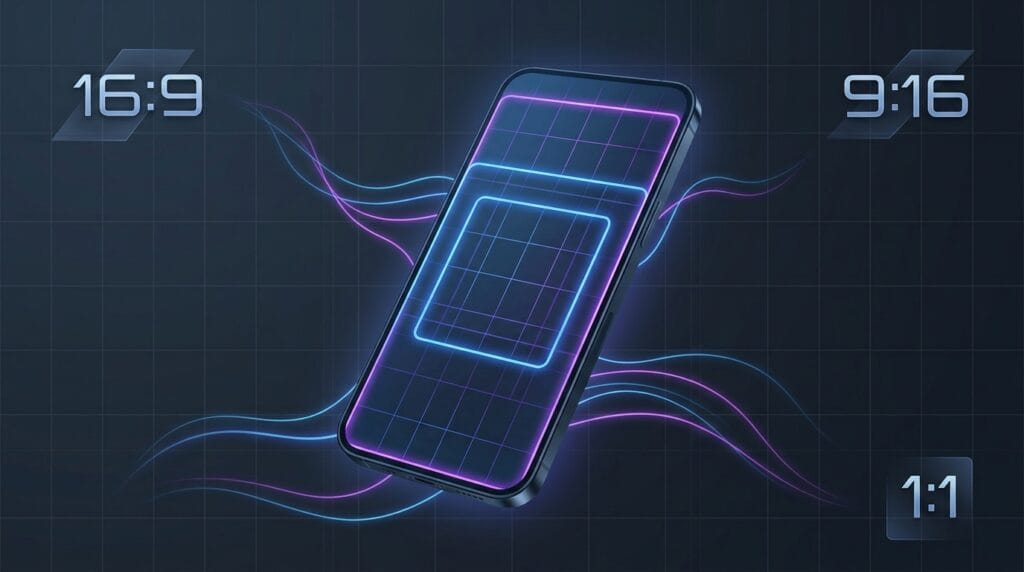
Knowing which ratio you need before you start resizing saves you from cropping out important parts of your image later.
How to Calculate Aspect Ratio From Pixels (Manual Method)
You don’t strictly need a calculator to find an aspect ratio — though it’s faster once you have one. Here’s the manual approach.
Step 1: Find the Greatest Common Divisor (GCD)
Take your width and height, then find the largest number that divides evenly into both. For 1920×1080, the GCD is 120.
Step 2: Divide Both Numbers by the GCD
1920 ÷ 120 = 16 1080 ÷ 120 = 9
Step 3: Write the Result as a Ratio
The simplified result, 16:9, is your aspect ratio.
Step 4: Verify With Different Dimensions
Try 1280×720. The GCD here is 80. Dividing gives 16:9 again — confirming both resolutions share the same shape, just different sizes.

How to Use Pixels to Find a Missing Dimension
Sometimes you already know the ratio you need (say, 16:9 for a video thumbnail) but only have one dimension. Here’s how to solve for the other one.
- Set up the ratio as a fraction — for 16:9, that’s 16/9
- Multiply your known dimension by the opposite ratio number
- Divide by the matching ratio number
Example: You have a width of 1600px and need the correct height for 16:9. Height = 1600 × 9 ÷ 16 = 900px
This method prevents the stretching or squashing that happens when dimensions are guessed rather than calculated.
Where Aspect Ratio Actually Matters
This isn’t just a technical detail for designers. It shows up constantly in everyday digital work:
- Social media posts — each platform enforces specific ratios, and off-ratio images get auto-cropped
- Video editing — mismatched ratios create black bars or stretched footage
- Website design — responsive images need consistent ratios to avoid layout shifts
- Printing — photos printed at the wrong ratio lose parts of the image at the edges
- Presentation slides — projectors and screens expect a specific ratio, usually 16:9
Aspect Ratio Reference Table
| Ratio | Common Use | Example Resolution |
|---|---|---|
| 16:9 | HD video, monitors | 1920×1080 |
| 4:3 | Older displays, slides | 1024×768 |
| 1:1 | Social media (square) | 1080×1080 |
| 9:16 | Vertical video/reels | 1080×1920 |
| 21:9 | Ultrawide, cinema | 2560×1080 |
| 3:2 | DSLR photography | 6000×4000 |
Manual Calculation vs. Design Software vs. Online Calculator
| Factor | Manual (GCD Method) | Design Software | Online Aspect Ratio Calculator |
|---|---|---|---|
| Speed | Slow | Medium (requires setup) | Instant |
| Accuracy | High, if done carefully | High | Very high |
| Learning Curve | Requires math knowledge | Software-specific | None |
| Best For | Understanding the concept | Active editing work | Quick checks before resizing |
Common Mistakes People Make With Aspect Ratio
- Resizing only one dimension and leaving the other unchanged, which distorts the image
- Assuming all HD content is 16:9 — some sources use 16:10 or other close variations
- Cropping instead of scaling, which can cut out important content instead of preserving it
- Ignoring platform-specific requirements, leading to auto-cropped social media posts
Pro Tips for Working With Aspect Ratios
- Lock the aspect ratio in your editing software before resizing to avoid manual math altogether
- Always check platform guidelines before uploading — Instagram, YouTube, and LinkedIn each have different preferred ratios
- Use round numbers when possible; resolutions like 1920×1080 scale more cleanly than odd pixel values
- Keep a reference chart handy for the ratios you use most often in your workflow
Checklist Before Resizing Any Image or Video
- Identified the original width and height
- Calculated or confirmed the current aspect ratio
- Determined the target ratio needed for the platform or output
- Calculated the missing dimension using the ratio formula
- Verified the final dimensions don’t distort the original content
Frequently Asked Questions
How do I convert pixels to aspect ratio? Find the greatest common divisor of the width and height, then divide both numbers by it. The simplified result is your aspect ratio.
What is the difference between 16:9 and 16:10? 16:9 is the standard for most modern screens and video content, while 16:10 is slightly taller and more common in some laptop displays and monitors.
Does changing the aspect ratio affect image quality? Changing the ratio itself doesn’t reduce quality, but stretching or cropping to force a new ratio can distort or cut off parts of the image.
What aspect ratio should I use for Instagram posts? Square posts use 1:1, while Instagram Stories and Reels use the vertical 9:16 ratio.
Can I find aspect ratio without knowing the exact pixel count? Yes — as long as you know the width and height in any consistent unit, the same GCD method applies.
Why do some videos have black bars on the sides? Black bars, called letterboxing or pillarboxing, appear when a video’s aspect ratio doesn’t match the display’s ratio, and the player adds padding instead of stretching the footage.
Key Takeaways
Aspect ratio comes down to one simple relationship: width compared to height, simplified into a clean ratio. Once you understand the GCD method, you can calculate it manually for any image or screen size — though an online calculator makes the process instant when you’re working quickly.
Whether you’re prepping content for social media, resizing a photo for print, or setting up a video export, getting the ratio right the first time saves you from distorted, cropped, or awkwardly padded results later.
Skip the manual math — use our free Aspect Ratio Calculator to convert pixels to ratio instantly, or check out our Video Aspect Ratio Guide for video-specific export settings.
Links:
- Aspect Ratio Calculator (tool): https://getcalcbase.com/developer-tools/aspect-ratio-calculator/
- Video Aspect Ratio Guide (related, video-specific angle): https://getcalcbase.com/video-aspect-ratio-guide/
- Developer Tools category: https://getcalcbase.com/developer-tools/