
How to Calculate Time Difference in Excel: Converting Minutes to Decimal Hours for Payroll
This is my experience.
Time Difference calculation is something everyone needs at some point in daily life. For example, if you want to know how many hours and seconds have passed between today 12 PM and tomorrow 12 PM, it can sometimes be confusing and time-consuming to calculate manually.
To solve this problem, I found a useful tool on the GCB (Get Calculator Base) website called the Time Difference Calculator. I tested it and found it very helpful.
This tool allows users to:
- Enter start time and end time
- Instantly calculate time difference
- Show results in hours, minutes, and seconds
- Save time and avoid manual mistakes
It gives accurate results very quickly and is very easy to use. The interface is simple—just enter the start and end time, and it does the rest automatically.
This tool is very useful for students, teachers, office workers, and anyone who needs quick time calculations in daily life.
Quick Answer: To accurately find the gap between two times for payroll, you need to convert minutes into a decimal format. The simple formula is Minutes ÷ 60 = Decimal Hours. For example, 45 minutes becomes 0.75 hours ($45 \div 60 = 0.75$). Using a professional date and time difference calculator is the best way to ensure you aren’t losing money on your paycheck due to rounding errors.
Calculating work hours sounds easy until you actually sit down to do it. If you’ve ever tried to subtract 8:45 AM from 5:15 PM on a piece of paper, you know how quickly things get confusing. Most people write their time in a “Standard” format, but businesses pay in “Decimal” format.
As a developer building the GetCalcBase time tool, I’ve talked to hundreds of freelancers who were accidentally undercharging because they didn’t understand how their payroll software reads time. This guide will walk you through exactly how to master these calculations using both manual methods and professional spreadsheet formulas.

Why Decimal Hours Matter for Your Paycheck
The core issue: our clocks run on a sexagesimal (base-60) system, but our money runs on a decimal (base-10) system.
Tell a client you worked “7.50 hours,” and they’ll assume 7 hours and 30 minutes. But if you actually worked 7 hours and 50 minutes, you just gave away 20 minutes of free labor. Over a month, these small “time leaks” add up to real money.
To keep your invoicing accurate, always verify your math with a dedicated time duration tracker before sending it off.
How to Calculate Time Difference in Excel for Payroll
Excel is the default tool for many small businesses, but it’s notoriously tricky with time. That’s because Excel treats one full day as the number 1 — so 12:00 PM (noon) is internally stored as 0.5.
The Core Formula for Decimal Hours
To get a result you can multiply directly by an hourly rate, use:
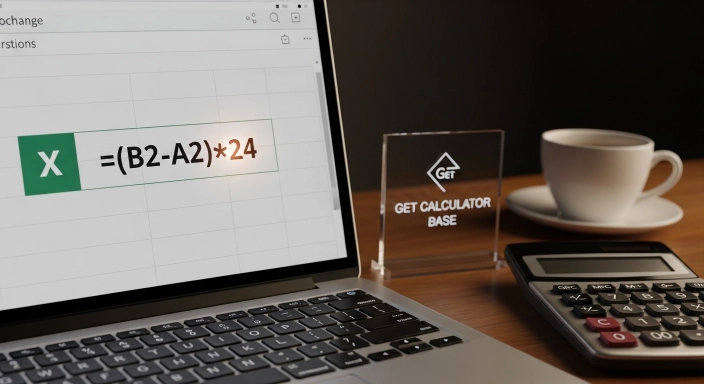
=(End_Time - Start_Time) * 24
Since Excel sees time as a fraction of a day, multiplying by 24 pulls the actual hour count out of that fraction.
Step-by-step setup:
- Input your times. Start time in Cell A2, end time in Cell B2 (e.g., 09:00 AM and 05:30 PM).
- Run the calculation. In Cell C2, enter
=(B2-A2)*24. - Format the cell correctly. This step trips up almost everyone. Right-click Cell C2 → Format Cells → choose “Number” or “General.” If it stays in “Time” format, the result displays incorrectly, like 12:00 AM instead of the actual hour count.
- Round for clean invoicing (optional). Wrap the formula in ROUND to avoid long decimals:
=ROUND((B2-A2)*24, 2)gives you a clean two-decimal result like 8.42 instead of 8.41666667.
Handling Overnight Shifts (The Negative Time Problem)
If someone clocks in at 10:00 PM and clocks out at 6:00 AM the next day, a basic =(B2-A2)*24 formula breaks. Since Excel sees 6:00 AM as numerically smaller than 10:00 PM within the same day, the result comes out negative — which Excel displays as a row of ##### symbols.
The fix is the MOD function, which forces the result to stay positive by wrapping it around a full day:
=MOD(End_Time - Start_Time, 1) * 24
This correctly reads a 10:00 PM to 6:00 AM shift as 8 hours, instead of returning an error. If you’re tracking shifts that regularly cross midnight, build this into your formula from the start rather than fixing it after the fact.
Subtracting Unpaid Breaks
Very few people work a full shift without a break, and payroll needs to reflect that. If your unpaid break duration is entered separately (say, 30 minutes in cell D2), convert it to a fraction of a day and subtract it before converting to decimal hours:
=((B2-A2) - (D2/1440)) * 24
Here, dividing by 1440 (the number of minutes in a day) converts your break minutes into the same day-fraction format Excel uses internally, so it subtracts cleanly from the shift duration.
Formatting Totals Over 24 Hours
If you’re summing multiple shifts and the total could exceed 24 hours (a full week’s worth, for example), standard time formatting resets at midnight and undercounts. Use a custom format instead: select the cell, open Format Cells → Custom, and enter [h]:mm:ss. The square brackets tell Excel to display total elapsed hours rather than resetting every 24 hours — essential for weekly timesheet totals.
Manual Conversion Tables: Minutes to Decimal Hours
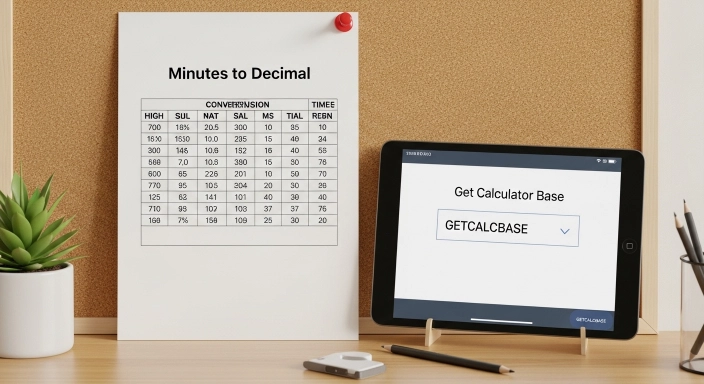
If you’re away from a computer and need a quick lookup, keep this table bookmarked:
| Standard Minutes | Decimal Equivalent | Formula |
|---|---|---|
| 5 Minutes | 0.08 | 5 ÷ 60 |
| 10 Minutes | 0.17 | 10 ÷ 60 |
| 15 Minutes | 0.25 | 15 ÷ 60 |
| 20 Minutes | 0.33 | 20 ÷ 60 |
| 25 Minutes | 0.42 | 25 ÷ 60 |
| 30 Minutes | 0.50 | 30 ÷ 60 |
| 35 Minutes | 0.58 | 35 ÷ 60 |
| 40 Minutes | 0.67 | 40 ÷ 60 |
| 45 Minutes | 0.75 | 45 ÷ 60 |
| 50 Minutes | 0.83 | 50 ÷ 60 |
| 55 Minutes | 0.92 | 55 ÷ 60 |
| 60 Minutes | 1.00 | 60 ÷ 60 |
Why You Should Choose the GetCalcBase Time Tool
While Excel and manual tables work, they leave room for human error. Here is how our professional tool compares to other methods:
Comparison: Comparison of Time Tracking Methods
| Feature | GetCalcBase Tool | Manual Math | Basic Excel |
| Speed | Under 1 Second | 2-3 Minutes | 5 Minutes (Setup) |
| Leap Year Logic | Built-in (365.25) | Usually ignored | Manual adjustment |
| Overnight Shifts | Handles Automatically | Very confusing | Requires MOD function |
| Data Privacy | 100% Client-Side | Private | Saved on PC/Cloud |
| Mobile Ready | Optimized | N/A | Hard to use on phones |
Expert Tips from the GetCalcBase Team
I worked closely with financial logic expert Arshia Ahmed to make sure our time difference tool holds up for real-world payroll use. A few insider tips worth knowing:
- The “seven-minute” rule. Many companies round to the nearest 15-minute increment. Work 7 minutes past the hour and it often rounds down; work 8 minutes and it rounds up. Check your contract or company policy to know which side of that line you fall on.
- Use military time. Tracking hours in 24-hour format (14:00 instead of 2:00 PM) eliminates a whole category of AM/PM mix-ups.
- Don’t drop the date. If a duration spans two calendar dates — an overnight shift, a sleep-tracking log, a fasting window — always include the date alongside the time to keep the underlying math accurate.
Real-World Examples of Time Difference Calculations
Example 1: The Freelancer’s Afternoon
- Start Time: 1:15 PM (13:15)
- End Time: 4:40 PM (16:40)
- Standard Duration: 3 hours and 25 minutes.
- Decimal Conversion: $25 \div 60 = 0.42$.
- Final Billable Time: 3.42 hours.
Example 2: The Student Study Session
If you use our GPA & marks calculator, you might want to know your “Time per Grade” ratio. If you study from 8:00 PM to 10:30 PM:
- Duration: 2 hours and 30 minutes.
- Decimal: 2.5 hours.

Frequently Asked Questions
How do I convert 40 minutes to decimal?
Divide 40 by 60. The result is 0.67 hours when rounded to the nearest hundredth.
Is there an easy way to calculate hours between two times?
Yes. The GetCalcBase time tool allows you to simply pick two points on a calendar, and it instantly breaks down the days, hours, and minutes for you.
Why does Excel show hashtags (######) when I subtract time?
This happens when the result is a negative number (usually an overnight shift). You can fix this by using the MOD function: =MOD(End-Start, 1).
Can I use this for international time zones?
Absolutely. Just make sure you normalize your times to a single zone (like UTC) before running the calculation.
Final Thoughts on Mastering Time Arithmetic
Whether you’re a student, developer, or business owner, time is one of your most valuable assets. Using a proper date and time difference calculator — one that correctly handles overnight shifts, breaks, and decimal conversion — means base-60 math errors don’t quietly shrink your paycheck or throw off your project timelines.
Privacy Disclaimer: At GetCalcBase, we believe your schedule is your business. Our time difference tool runs entirely in your browser. No data is sent to our servers — fast, private, and accurate.