
Live Code Editor: Write, Preview, and Test HTML, CSS & JS Instantly
You’ve got an idea for a small snippet — maybe a button hover effect, a layout tweak, or a quick JavaScript function — and setting up a full local project just to test it feels like overkill. That’s exactly the gap a live code editor fills. Type your code, hit run, and see the result immediately, without touching a text editor, a terminal, or a single file on your computer.
This guide walks through exactly how this tool works, what it’s built for, and how to get the most out of it whether you’re learning to code or testing a quick idea before dropping it into a real project.
Quick Answer: What Does This Live Code Editor Do?
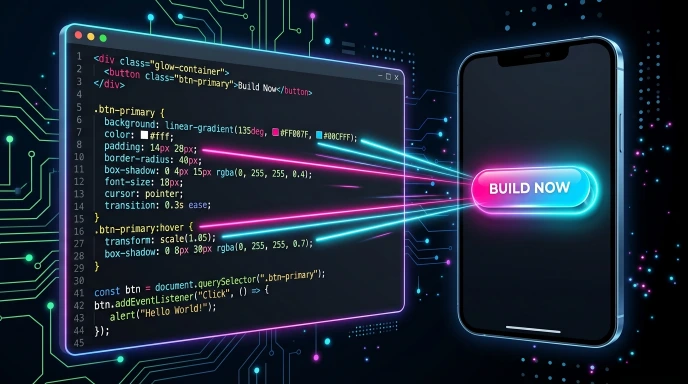
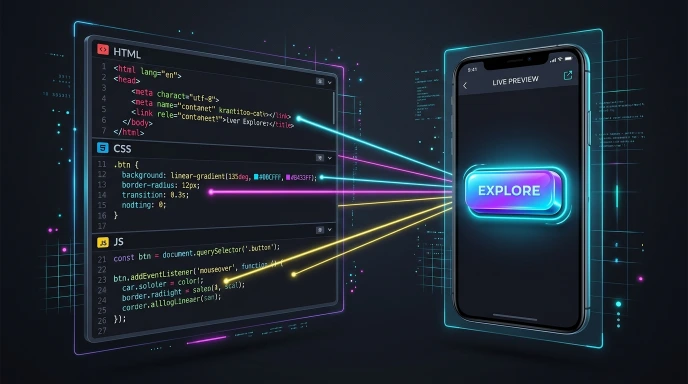
This live code editor lets you write HTML, CSS, and JavaScript in three separate boxes and instantly preview the combined result inside the same page. Click Run, and your code renders in a live preview window. You can switch between desktop, tablet, and mobile preview widths, toggle dark or light mode, and download your finished snippet as a single HTML file — all without creating an account.
Expert Personal Experience
Let me share something I have never told anyone before. I am a coding developer, and I have been learning to code for quite a while. I used to practice on my PC, starting with a professional class and then moving on to YouTube tutorials. Once I learned the basics, it was time to put that knowledge into practice and start building websites.
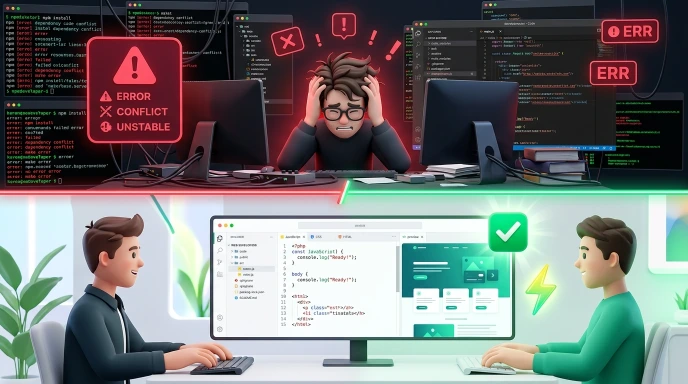
I would write code, but I hit a major wall: my PC was not powerful enough to run VS Studio. It wouldn’t even install properly. I deleted so many files, tried to free up space, but it just wouldn’t work. I was under so much stress, thinking about how frustrating it is to be held back by lack of resources—I couldn’t even do my own work.
I kept searching on Google for a solution until I found a website by the WP Skillz team. They completely won my heart. They have built so many tools, but the one that changed everything for me was their Code Compiler. It allowed me to write code and test how it looked in real-time, all in one place, without needing high-end PC specs. I learned to code and test directly in my browser. It’s truly amazing! Now, I even use it on my mobile phone. I have shared a few more tips about it below.
What Is a Live Code Editor, and Who Is It For?
A live code editor is a browser-based tool that combines a code input area with an instant rendering preview, so you can see the visual or functional result of your code as you build it — no local setup required.
This particular tool is aimed at:
- Beginners learning HTML, CSS, and JavaScript who want to see results immediately, which makes concepts click faster than staring at static code
- Developers testing a small snippet — a CSS animation, a layout fix, a short JS function — before committing it to a larger codebase
- Teachers and students who need a shared, distraction-free space to demonstrate or practice front-end basics
- Bloggers and content creators who want to quickly verify how a code snippet renders before publishing it
If your work involves writing and checking small pieces of front-end code, this saves you from opening a code editor, creating files, and setting up a local server just to see whether something works.
How to Use the Live Code Editor (Step-by-Step)
Step 1: Write Your HTML
Enter your HTML markup in the first box. This is the structure of your page or snippet — headings, text, buttons, containers, whatever you’re building.
Step 2: Add Your CSS
Use the second box for styling. Anything you write here applies directly to the HTML you added in Step 1.
Step 3: Add JavaScript (Optional)
If your snippet needs interactivity — a click handler, a toggle, a calculation — write it in the third box. This step is optional; plenty of use cases only need HTML and CSS.
Step 4: Click Run
Hit the Run button. A short progress animation plays for a few seconds, then your combined HTML, CSS, and JavaScript renders inside the live preview window below.
Step 5: Check Different Screen Sizes
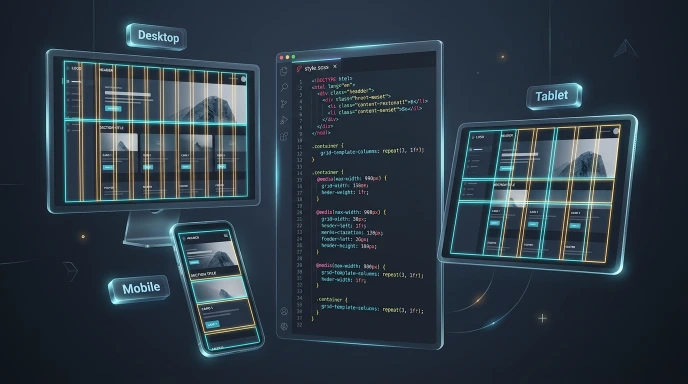
Use the Desktop, Tablet, and Mobile buttons above the preview to resize the output window and check how your code behaves at different widths — useful for catching responsive design issues early.
Step 6: Download When You're Done
Click Download to save your HTML, CSS, and JavaScript as a single .html file to your device, ready to open in a browser or drop into a project.
Features at a Glance
- Three-panel editor — separate, clearly labeled boxes for HTML, CSS, and JavaScript
- Instant live preview — rendered inside a sandboxed iframe, so your test code can't interfere with the rest of the page
- Responsive preview testing — check desktop, tablet, and mobile widths without resizing your browser window
- 8 accent color themes plus dark and light mode, so the editor itself is comfortable to work in for longer sessions
- One-click download — get your finished snippet as a ready-to-use HTML file

Benefits of Testing Code This Way
- No setup time. There’s nothing to install and nothing to configure — open the page and start typing.
- Faster learning curve. Seeing immediate visual feedback helps beginners connect code to outcome much faster than switching between an editor and a separate browser tab.
- Safer experimentation. Because the preview runs in a sandboxed iframe, testing unfamiliar or messy code here won’t affect your actual website or project files.
- Quick responsive checks. Catching a layout that breaks on mobile takes seconds, not a full browser resize.
Honest Limitations to Know Before You Start
In practice, it’s worth knowing what this tool isn’t built for, so you can choose the right tool for the job:
- No syntax highlighting. Code appears in a plain monospace font, which is fine for short snippets but less convenient for longer, complex code.
- No auto-save. Refreshing or closing the tab will lose your current code, so download or copy anything you want to keep before navigating away.
- No external library imports. You can’t pull in frameworks or packages directly — everything you test needs to be written in the three boxes.
- Sandboxed execution. Since the preview runs in a restricted iframe, certain browser features that depend on full page permissions may behave differently than they would on a live, deployed site.
None of these limitations make the tool less useful for its intended purpose — quick testing and learning — but they matter if you’re planning a larger, multi-file project.
Manual Local Setup vs. Desktop IDE vs. Live Code Editor
| Factor | Manual Local Setup | Desktop IDE (e.g., VS Code) | Live Code Editor |
|---|---|---|---|
| Setup Time | Minutes to hours | Minutes (one-time install) | None |
| Best For | Full production projects | Ongoing, serious development | Quick tests, learning, demos |
| Install Required | Yes | Yes | No |
| Instant Preview | No, requires a local server | Depends on extensions | Yes, built in |
| Portability | Tied to your machine | Tied to your machine | Works from any browser |
Checklist Before You Start Testing
- HTML structure is written and saved elsewhere as a backup, if it's important
- CSS is scoped correctly to match your HTML's class and ID names
- JavaScript doesn't rely on any external library or import
- You've clicked Run after your most recent edit
- You've checked the preview at desktop, tablet, and mobile widths
- You've downloaded the final version before closing the tab

Common Mistakes to Avoid
- Forgetting to click Run after edits — changes in the boxes don’t appear in the preview automatically; you need to run the code again after each change
- Writing JavaScript that depends on external libraries — since nothing can be imported, code relying on frameworks like jQuery or React won’t work here
- Not testing at multiple screen widths — a layout that looks fine on desktop can break completely on mobile, so use the responsive preview buttons before assuming your code is done
- Losing work by navigating away — since there’s no auto-save, download your snippet before closing the tab if you want to keep it
Pro Tips for Getting the Most Out of This Tool
- Test one change at a time. When debugging, isolate what you just changed rather than editing all three boxes at once — it makes spotting the source of a bug much faster.
- Use the mobile preview early, not as an afterthought. Designing mobile-first, even in a quick test, catches responsive issues before they become habits.
- Download working snippets as you go, especially during longer sessions, so you always have a saved checkpoint if something breaks.
- Keep JavaScript snippets self-contained. Since external libraries aren’t supported, plain vanilla JavaScript will give you the most reliable results here.
Frequently Asked Questions (FAQs)
Do I need to create an account to use this live code editor?
No. There’s no signup or login required — open the page and start writing code immediately.
Can I use this tool on mobile devices?
Yes, though writing longer code snippets is generally easier on a desktop or laptop given the multi-panel layout.
Does this tool save my code automatically?
No, there’s no auto-save. Download your code using the Download button before closing or refreshing the page if you want to keep it.
Can I import external libraries like jQuery or Bootstrap?
Not directly. This tool is built for testing self-contained HTML, CSS, and JavaScript without external dependencies.
Is it safe to test JavaScript I'm not fully sure about?
Yes — the preview runs inside a sandboxed iframe, which isolates your test code from the rest of the page and your actual browsing session.
What file do I get when I click Download?
A single .html file containing your HTML, along with your CSS and JavaScript embedded inside it, ready to open directly in any browser.
Conclusion
esting front-end code snippets in a live, sandboxed environment saves time and removes the overhead of maintaining local development files. However, front-end code is only one piece of a complete web project. Once your layout is ready, test how it adapts across screens using our Responsive Website Checker, and ensure your styling and assets do not hinder performance with our Website Speed Checker.
If you are inspecting real-world applications to see how specific components are implemented, explore tech stacks using our Website Technology Checker. For quick media hosting during development, create short-lived asset links with our Temporary Image Link Generator, and structure your page metadata for search engine visibility using our Schema Markup Generator. To explore more utilities built for developers and web creators, visit our main Developer Tools hub, or connect with the tool developer Waseem Aijaz on LinkedIn for technical updates and optimization insights.
Getcalcbase Disclaimer:
The Live Code Editor provided by Getcalcbase is intended for client-side HTML, CSS, and JavaScript testing, experimentation, and educational purposes. Code execution occurs strictly within a sandboxed browser environment. Getcalcbase does not store, backup, or auto-save your session code, and is not responsible for any data loss resulting from browser refreshes or tab closures. Users should download their code snippets before navigating away from the page.
Related Guides for Developers
Once you’ve tried your code in the editor, these two guides cover the next steps:
- How to Practice Coding Online: a beginner-friendly walkthrough of practicing coding for free, without installing anything.
- Which Devices to Test Your Website On: how to pick the screens and browsers that matter, so your code works for real visitors.
Want more quick checks? Browse all our free developer tools.
What the Get Calculator Base Community Says
Average Rating: 4.9/5 based on our beta users